How to Master QWERTY Keyboard Typing: 5 Easy Steps for Beginners
Published: 21 Apr 2026
Mastering the QWERTY keyboard is an essential skill for anyone who spends hours typing daily, whether for work, school, or personal projects. Understanding this layout improves typing speed, reduces errors, prevents strain, and boosts overall productivity. In the U.S., the QWERTY keyboard is the standard, making proficiency crucial for efficient communication on computers and devices.
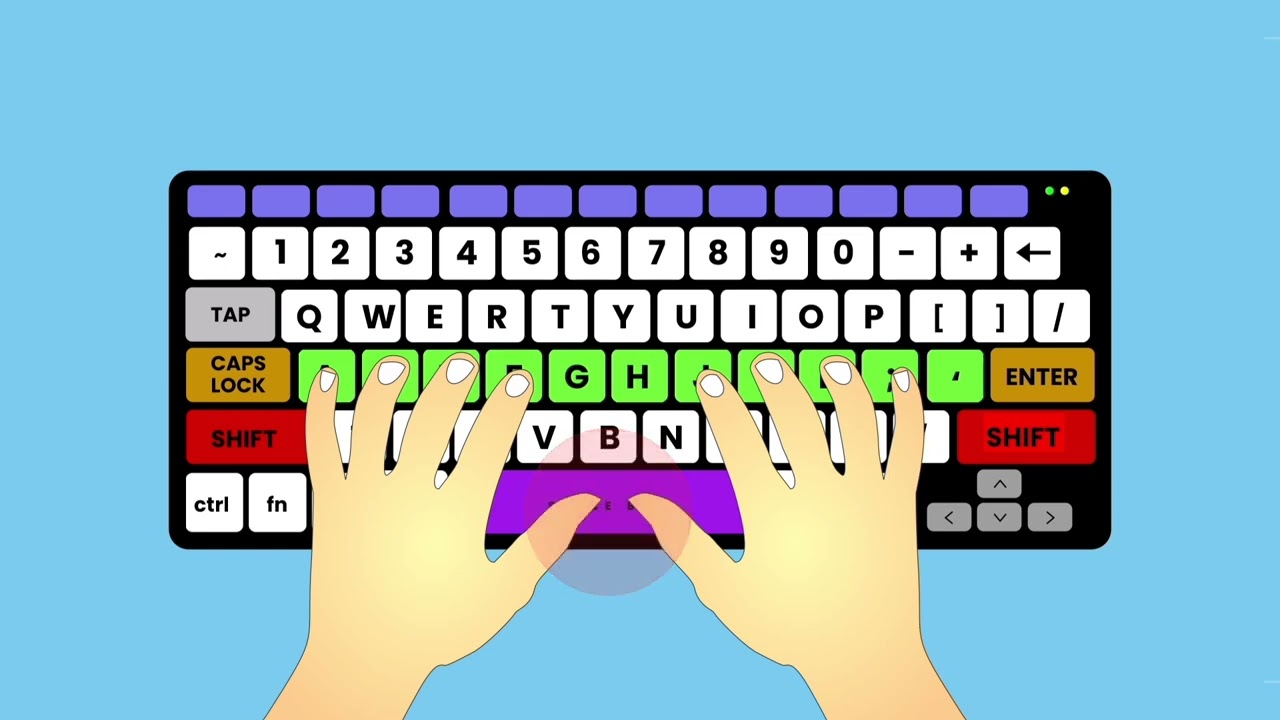
From beginners to intermediate typists, learning its layout, comparing it with alternatives, and practicing regularly can transform your workflow. This guide walks you through five simple steps to master the QWERTY keyboard, including ergonomics, alternative layouts, and advanced typing techniques.
1. How to Master QWERTY Keyboard Typing-Understanding the Layout
Learning a keyboard starts with knowing its layout and key placement. This section explains the standard setup and introduces popular variations like TKL and Neo series for comfortable typing.
1.1 What is a QWERTY Keyboard?
The QWERTY keyboard is the most widely used keyboard layout globally, especially in the U.S. It was designed in the 1870s to prevent typewriter jams by spacing frequently used letters apart. Today, it serves as the standard keyboard layout for desktops, laptops, and external keyboards. Understanding what a QWERTY keyboard is and its meaning is essential for beginners because it provides insight into why certain letters and keys are placed where they are, which ultimately improves typing efficiency.

1.2 Anatomy of the QWERTY Layout
The QWERTY keyboard layout consists of:
- Top row: Q-W-E-R-T-Y
- Middle row: A-S-D-F-G-H-J-K-L
- Bottom row: Z-X-C-V-B-N-M
Modifiers like Shift, Ctrl, and Alt, along with number keys and function keys, complete the keyboard layout qwerty. Whether using a standard keyboard, TKL keyboard, or advanced layouts like Neo65, Neo Ergo, or Neo80, the principles of the qwerty keyboard layout, qwerty layout, and computer keyboard layout remain consistent. Familiarizing yourself with these sections is a crucial first step in mastering typing.
2. Comparing QWERTY With Other Keyboard Layouts
Not all keyboards are the same, and layout differences affect typing speed. Here we explore common alternatives and how they compare to the standard QWERTY setup.
2.1 QWERTY vs QWERTZ
When looking at qwerty vs qwertz, the main difference is that the Y and Z keys are swapped in the QWERTZ layout, which is common in Central Europe. Understanding the qwertz keyboard layout and the difference between qwerty and qwertz helps U.S. users adapt to international keyboards and prevents confusion when typing abroad.
2.2 AZERTY vs QWERTY
The azerty vs qwerty comparison is crucial for anyone exposed to French-speaking regions. AZERTY keyboards rearrange letters and symbols, which can slow typing speed for QWERTY-trained users. Knowing these differences ensures you maintain speed and accuracy across multiple keyboard types.
2.3 Neo & Ergonomic Layouts
Advanced keyboards like neo65, neo ergo, and neo80 offer ergonomic benefits, including reduced finger movement and optimized hand positioning. These layouts are designed for speed, comfort, and reduced strain during long typing sessions. Adopting ergonomic designs or experimenting with compact layouts can significantly improve efficiency for power users.
Quick Layout Comparison Table
| Layout | Region | Key Differences | Best Use |
| QWERTY | U.S./Global | Standard layout | General typing |
| QWERTZ | Central Europe | Y and Z swapped | Regional typing |
| AZERTY | France/Belgium | Letters A/Q, Z/W swapped | Regional typing |
| Neo Series | Global | Optimized ergonomics | Power users / Ergonomic typing |
3. Choosing the Right Keyboard for You
Selecting the right keyboard can improve comfort and productivity. This section covers full-size, TKL, and ergonomic options to help you find the best fit.
3.1 Standard vs TKL vs Compact Keyboards
Choosing the right keyboard affects comfort and productivity. Standard keyboards include a numeric keypad and full-size layout. TKL keyboards remove the numeric keypad for a more compact design, while compact or Neo series keyboards reduce hand movement and provide ergonomic benefits. Understanding these options helps you select the most suitable keyboard for your workspace, whether at home or in the office.
3.2 Mechanical vs Membrane Keyboards
Mechanical keyboards offer tactile feedback, durability, and faster typing. Membrane keyboards are quieter and more affordable but may lack responsiveness. Selecting the right type ensures smooth, comfortable typing and long-term efficiency, especially for U.S. users who type for extended periods.
4. Typing Ergonomics and Posture
Good posture and hand placement prevent fatigue and improve accuracy. Learn how to set up your desk and keyboard for long typing sessions.
4.1 Correct Hand Placement
Proper hand placement is critical for typing accuracy. Keep fingers on the home row (ASDF / JKL;) and wrists relaxed. This prevents fatigue and improves typing speed.
4.2 Desk and Chair Setup
Adjust your desk and chair so forearms are parallel to the floor and feet flat on the ground. This positioning supports good posture and reduces strain during long typing sessions.
4.3 Tips for Minimizing Fatigue
Take short breaks every 30–40 minutes, use wrist rests, and perform simple hand exercises. Ergonomic awareness is especially important when using standard keyboard layouts daily.
5. Practicing to Improve Speed and Accuracy
Consistent practice is key to typing mastery. Discover techniques and tools that make learning faster, easier, and more effective.
5.1 Online Typing Tools and Software
Typing platforms such as Typing.com, Keybr.com, and Ratatype help track your progress and provide structured lessons. These tools are optimized for U.S. users and support skill development for beginners and advanced typists alike.
5.2 Daily Practice Techniques
Consistent practice with drills targeting home row keys, speed exercises, and typing games develops muscle memory. Spending just 15–20 minutes a day on structured exercises can significantly improve typing speed.
5.3 Measuring Progress
Monitor your WPM (words per minute) and accuracy rates. Identify weak keys or patterns, then focus on those areas. Keeping a progress log ensures continuous improvement.
6. Advanced QWERTY Techniques for Pros
Once basics are mastered, advanced techniques can boost efficiency. This section introduces touch typing, key remapping, and productivity shortcuts.
6.1 Touch Typing vs Hunt-and-Peck
Touch typing allows typing without looking at the keyboard, increasing speed and reducing errors. Hunt-and-peck is slower and less efficient, making touch typing essential for advanced users.
6.2 Customizing Keyboard Layouts
Advanced layouts like neo65, neo ergo, and neo80 can be customized for productivity. Tools like AutoHotkey allow key remapping, enabling faster access to frequently used commands.
6.3 Hotkeys and Shortcuts
Learn shortcuts for Windows (Ctrl+C, Ctrl+V, Alt+Tab) and Mac (Cmd+C, Cmd+V, Cmd+Tab). Mastering these reduces mouse dependency and accelerates workflow.
7. Common Mistakes to Avoid
Avoiding common typing errors saves time and frustration. Learn which habits to watch for and how to correct them.
- Poor hand posture: Not keeping hands on the home row can slow typing and increase errors. Always maintain correct hand placement.
- Ignoring alternative layouts: Being familiar with TKL, Neo65, Neo Ergo, or Neo80 keyboards can improve comfort and speed.
- Overreliance on auto-correct: Relying too much reduces typing accuracy and prevents learning key placement.
- Skipping ergonomics: Using a standard keyboard without proper desk and chair setup may cause fatigue during long typing sessions.
- Neglecting practice routines: Regular drills for speed and accuracy, especially on keyboard layout QWERTY, are essential for mastery.
- Forgetting modifiers and function keys: Keys like Shift, Ctrl, Alt are crucial for shortcuts; ignoring them can reduce workflow efficiency.
8. Conclusion
Mastering the QWERTY keyboard involves understanding the layout, maintaining ergonomic posture, practicing consistently, and exploring alternative designs for comfort and speed. By following these five steps, you can improve typing speed, accuracy, and efficiency.Ergonomic keyboards like TKL or Neo series, combined with daily focused practice, can transform your typing experience. Start small, gradually increase complexity, and incorporate shortcuts and advanced layouts. Consistent effort leads to mastery, making your typing faster, more comfortable, and more productive in any U.S. work or study environment.
9. FAQs
Slow typing usually happens due to incorrect finger placement or lack of practice. Use touch typing and daily exercises to improve speed and accuracy.
Reduce mistakes by focusing on accuracy first, not speed. Keep your fingers on the home row and practice slow, controlled typing.
Finger fatigue comes from poor posture or using too much force on keys. Keep your hands relaxed and use a comfortable typing position.
Practice regularly using typing tools and exercises. Learn correct finger placement and gradually increase your typing speed over time.
This happens due to lack of muscle memory. Practice touch typing daily to train your brain to type without looking at the keys.
Focus on accuracy first, slow down your typing, and avoid rushing. Regular practice will naturally improve precision over time.




- Be Respectful
- Stay Relevant
- Stay Positive
- True Feedback
- Encourage Discussion
- Avoid Spamming
- No Fake News
- Don't Copy-Paste
- No Personal Attacks
- Be Respectful
- Stay Relevant
- Stay Positive
- True Feedback
- Encourage Discussion
- Avoid Spamming
- No Fake News
- Don't Copy-Paste
- No Personal Attacks
