Most Important Microsoft Word Shortcut Keys
Published: 6 Jun 2026
Microsoft Word is one of the most widely used word processing tools in the world. Whether you are a student, a professional, or a business owner, learning the Most Important MS Word Shortcut Keys can completely transform the way you work. Instead of wasting time clicking through menus, these shortcuts help you complete tasks faster and improve productivity.
In this guide, you will discover the Most Important MS Word Shortcut Keys organized into easy-to-read sections and tables. From basic editing commands to advanced formatting and navigation shortcuts, these keyboard combinations can save valuable time and make document creation more efficient.
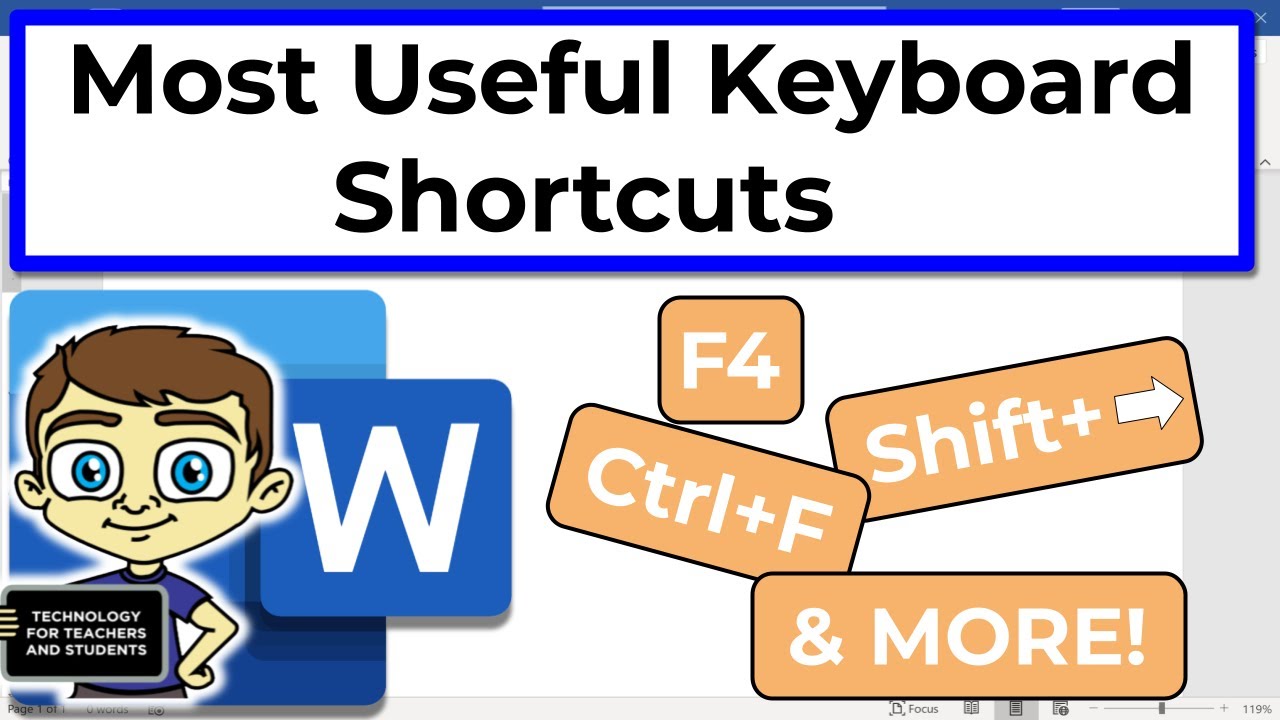
Learning the Most Important MS Word Shortcut Keys does not take long, but the benefits can be significant. Regular shortcut users often complete tasks faster, reduce repetitive mouse clicks, and enjoy a smoother workflow when working in Microsoft Word.
1. Most Important MS Word Shortcut Keys for Daily Use
These are the first shortcuts every Word user should learn. They cover everyday tasks like opening, saving, copying, and undoing actions. If you only learn one category, make it this one.
| Shortcut Key | What It Does |
| Ctrl + N | Open a new blank document |
| Ctrl + O | Open an existing document from your computer |
| Ctrl + S | Save the current document (use this often!) |
| Ctrl + W | Close the current document |
| Ctrl + P | Open the Print dialog |
| Ctrl + Z | Undo the last action |
| Ctrl + Y | Redo the last undone action |
| Ctrl + C | Copy selected text or object |
| Ctrl + X | Cut selected text or object |
| Ctrl + V | Paste copied or cut content |
| Ctrl + A | Select all content in the document |
| Ctrl + F | Open Find dialog to search for text |
| Ctrl + H | Open Find and Replace dialog |
Tip: Press Ctrl + S every few minutes while working. It only takes a second and can save you from losing hours of work if your computer crashes.
2. Text Formatting Shortcuts
Formatting shortcuts let you apply styles like bold, italic, and alignment without touching the toolbar. They work as toggles press again to remove the formatting.
| Shortcut Key | What It Does |
| Ctrl + B | Bold — apply or remove bold formatting |
| Ctrl + I | Italic — apply or remove italic formatting |
| Ctrl + U | Underline — apply or remove underline |
| Ctrl + D | Open the Font settings dialog box |
| Ctrl + E | Center align the paragraph |
| Ctrl + L | Left align the paragraph |
| Ctrl + R | Right align the paragraph |
| Ctrl + J | Justify (even both sides) the paragraph |
| Ctrl + Shift + > | Increase font size by one step |
| Ctrl + Shift + < | Decrease font size by one step |
| Ctrl + ] | Increase font size by 1 point |
| Ctrl + [ | Decrease font size by 1 point |
| Ctrl + Space | Remove all character formatting from selected text |
| Shift + F3 | Cycle through ALL CAPS, lowercase, and Title Case |
Tip: Select your text first, then apply the shortcut. Shift + F3 is especially useful for quickly fixing capitalization mistakes without retyping.
3. Navigation Shortcuts Move Around Quickly
When working with long documents, scrolling with a mouse is slow. These shortcuts let you jump around your document quickly and precisely, saving you a lot of time.
| Shortcut Key | What It Does |
| Ctrl + Home | Jump to the very beginning of the document |
| Ctrl + End | Jump to the very end of the document |
| Ctrl + Right Arrow | Move cursor one word to the right |
| Ctrl + Left Arrow | Move cursor one word to the left |
| Ctrl + Up Arrow | Move cursor up one paragraph |
| Ctrl + Down Arrow | Move cursor down one paragraph |
| Page Up | Scroll up one full screen |
| Page Down | Scroll down one full screen |
| Ctrl + G | Go To dialog jump to a specific page or line |
| Shift + F5 | Return to last editing location (great after reopening) |
Tip: Shift + F5 is a hidden gem. When you reopen a document, press this shortcut and Word will take you right back to where you last made changes.
4. Text Selection Shortcuts
Selecting text accurately with a mouse can be frustrating, especially for large blocks. Use these keyboard shortcuts for faster and more precise selections.
| Shortcut Key | What It Does |
| Shift + Right Arrow | Extend selection one character to the right |
| Shift + Left Arrow | Extend selection one character to the left |
| Ctrl + Shift + Right Arrow | Extend selection one full word to the right |
| Ctrl + Shift + Left Arrow | Extend selection one full word to the left |
| Shift + Down Arrow | Extend selection one line down |
| Shift + Up Arrow | Extend selection one line up |
| Shift + End | Select from cursor to end of current line |
| Shift + Home | Select from cursor to start of current line |
| Ctrl + Shift + End | Select from cursor to end of document |
| Ctrl + Shift + Home | Select from cursor to beginning of document |
| Ctrl + A | Select everything in the document |
5. Heading Style Shortcuts
Applying proper heading styles makes your document look professional and allows you to generate a Table of Contents automatically. These shortcuts save you from clicking through style menus.
| Shortcut Key | What It Does |
| Ctrl + Alt + 1 | Apply Heading 1 style (main title or section) |
| Ctrl + Alt + 2 | Apply Heading 2 style (subsection) |
| Ctrl + Alt + 3 | Apply Heading 3 style (sub-subsection) |
| Ctrl + Shift + N | Apply Normal style (regular body text) |
| Ctrl + Alt + 4 | Apply Heading 4 style |
6. Table Shortcuts
These shortcuts help you navigate and manage tables inside Word without constantly reaching for the mouse.
| Shortcut Key | What It Does |
| Tab | Move to the next cell in a table |
| Shift + Tab | Move to the previous cell in a table |
| Tab (in last cell) | Automatically add a new row at the bottom |
| Alt + Shift + Up Arrow | Move the entire table row up |
| Alt + Shift + Down Arrow | Move the entire table row down |
| Ctrl + Shift + F8 | Extend selection to an entire table column |
7. Review and Track Changes Shortcuts
If you collaborate with others or edit documents professionally, these shortcuts are essential for reviewing changes, adding comments, and checking spelling.
| Shortcut Key | What It Does |
| Ctrl + Shift + E | Turn Track Changes on or off |
| Alt + Ctrl + M | Insert a comment at the cursor |
| F7 | Open Spelling and Grammar check |
| Shift + F7 | Open the Thesaurus |
| Alt + Shift + R | Accept a tracked change |
| Ctrl + Shift + C | Copy formatting from selected text |
8. Special Characters and Symbols
These shortcuts insert special characters that are not available directly from your keyboard, saving you from opening the Insert Symbol menu.
| Shortcut Key | What It Does |
| Ctrl + Shift + Space | Insert a non-breaking space |
| Ctrl + Hyphen | Insert an optional hyphen |
| Ctrl + Shift + Hyphen | Insert a non-breaking hyphen |
| Alt + Ctrl + C | Insert copyright symbol © |
| Alt + Ctrl + R | Insert registered trademark symbol ® |
| Alt + Ctrl + T | Insert trademark symbol ™ |
| Alt + Ctrl + Period | Insert ellipsis … |
9. View and Window Shortcuts
These shortcuts control how Word looks on your screen and help you switch between open documents efficiently.
| Shortcut Key | What It Does |
| Ctrl + F1 | Show or hide the ribbon toolbar |
| Ctrl + F6 | Switch between open Word document windows |
| Ctrl + F10 | Maximize the document window |
| Ctrl + F5 | Restore the document window to smaller size |
| F11 | Go to the next field in a form |
| Shift + F11 | Go to the previous field in a form |
| Ctrl + Shift + F12 | Print the document |
10. Function Key Shortcuts (F1 to F12)
The function keys at the top of your keyboard are often forgotten, but they contain some of the most powerful shortcuts in Word. Here is what each one does:
| Function Key | What It Does |
| F1 | Open Microsoft Word Help |
| F2 | Move text press F2, move cursor, press Enter to paste |
| F3 | Insert AutoText or AutoCorrect entry |
| F4 | Repeat the last action you performed |
| F5 | Open Find and Replace / Go To dialog |
| F6 | Move to the next pane or frame |
| F7 | Check spelling and grammar |
| F8 | Enter extend selection mode |
| F9 | Update selected fields |
| F10 | Activate the menu bar |
| F11 | Go to next field |
| F12 | Open Save As dialog |
11. Pro Tips to Learn Shortcuts Faster
Memorizing all shortcuts at once is overwhelming. Use these practical strategies instead:
- Start with just 5 shortcuts per week and use them until they feel automatic
- Print this guide and keep it near your desk as a quick reference sheet
- Every time you reach for the mouse, pause and ask: is there a keyboard shortcut for this?
- Practice combinations: Ctrl + A to select all, then Ctrl + C to copy everything at once
- Press Alt in Word to activate Key Tips labels will appear on every ribbon button showing its shortcut
- Create your own shortcuts via File > Options > Customize Ribbon > Customize (Keyboard Shortcuts)
12. Conclusion
Microsoft Word shortcut keys are one of the simplest and most effective ways to boost your daily productivity. Whether you are writing reports, editing documents, or formatting a thesis, these shortcuts mean less time on repetitive clicking and more time focused on what actually matters your content.
Start with the basics and build from there. Within a few weeks of consistent practice, these shortcuts will feel completely natural. Come back to this guide whenever you want to add new ones to your toolkit.
13. FAQs
Ctrl + S is arguably the most critical one. It saves your document instantly and should become a habit press it every few minutes while working. Many users have lost hours of work simply because they forgot to save before a crash or power cut.
Press Ctrl + Z multiple times to undo each action one step at a time. Word keeps a full history of your edits so you can keep pressing it to go back as far as needed. You can also click the dropdown arrow next to the Undo button in the toolbar to jump back several steps in one click.
Press Shift + Enter to insert a soft return or manual line break. This moves your text to the next line without creating a new paragraph, so paragraph spacing settings are not applied. It is very useful inside headings or list items where you need tighter line control.
Yes. Select your text and press Shift + F3 to cycle through three modes: ALL CAPS, all lowercase, and Title Case. This works without retyping anything, making it perfect for quickly fixing capitalization mistakes
Place your cursor at the start of the paragraph. Hold Shift and press Ctrl + Down Arrow to select to the end of that paragraph. Keep pressing Ctrl + Down Arrow while holding Shift to extend the selection across multiple paragraphs.
Yes. Go to File > Options > Customize Ribbon, then click the Customize button next to Keyboard Shortcuts at the bottom. You can browse every available command and assign whatever key combination you prefer.
Select the text and press Ctrl + Space to remove all character formatting such as bold, italic, font changes, and color, returning it to the document default. If you also want to reset paragraph formatting like indents and alignment, press Ctrl + Q on the selected paragraph.
Place your cursor anywhere inside the paragraph and press Alt + Shift + Up Arrow to move it up, or Alt + Shift + Down Arrow to move it down. This works for regular paragraphs and list items and is much faster than manually cutting and pasting content.
Most shortcuts work the same on Mac, but you replace the Ctrl key with the Command (Cmd) key. For example, Ctrl + S on Windows becomes Cmd + S on Mac. A few shortcuts use the Option key on Mac instead of Alt. The core shortcuts like save, copy, paste, undo, and formatting all translate directly.
Most core shortcuts have been consistent across Word 2010, 2013, 2016, 2019, 2021, and Microsoft 365. A few advanced shortcuts may vary between versions but the fundamental ones covered in this guide work across all modern versions of Word.


- Be Respectful
- Stay Relevant
- Stay Positive
- True Feedback
- Encourage Discussion
- Avoid Spamming
- No Fake News
- Don't Copy-Paste
- No Personal Attacks
- Be Respectful
- Stay Relevant
- Stay Positive
- True Feedback
- Encourage Discussion
- Avoid Spamming
- No Fake News
- Don't Copy-Paste
- No Personal Attacks
