Common Keyboard Shortcuts Explained: Work Faster Every Day
Published: 11 Jun 2026
Common keyboard shortcuts explained in simple language can help anyone work faster on a computer. If you have ever watched someone work quickly and wondered how they navigate without constantly using a mouse, the answer is keyboard shortcuts.
These key combinations allow you to perform tasks instantly, saving time and improving productivity. In this guide, common keyboard shortcuts explained step by step will help students, professionals, and beginners learn the most useful shortcut keys for everyday computer use.
What Are Keyboard Shortcuts and Why Do They Matter?
A keyboard shortcut is a key or combination of keys that triggers a specific action in your operating system or application. Instead of clicking File > Save, you press Ctrl + S and the job is done in under a second.
According to a study by Brains cape, power users who rely on shortcuts can save over eight days of work per year compared to those who depend entirely on the mouse. That is not a small number it adds up fast.
More importantly, shortcuts reduce mental friction. When your hands stay on the keyboard, your focus stays on the work. You are not breaking your train of thought to grab the mouse and hunt through menus.
The Modifier Keys: Understanding the Basics
Before diving into shortcuts, you need to understand modifier keys. These are special keys that change the function of other keys when held down together.
| Key | Symbol | Where You Find It | What It Does |
| Ctrl (Control) | ^ | Bottom-left and bottom-right | Triggers most shortcuts in Windows/Linux |
| Alt (Alternate) | Alt | Next to the spacebar | Opens menus, switches windows |
| Shift | ⇧ | Above Caps Lock | Selects text, types uppercase |
| Windows / Command | ⊞ / ⌘ | Between Ctrl and Alt | Opens Start menu or Mac commands |
| Fn (Function) | Fn | Bottom-left on laptops | Activates F-key secondary functions |
On a Mac, the Command key (⌘) replaces Ctrl for most shortcuts. So Ctrl + C on Windows becomes Command + C on Mac. Keep this in mind as you go through this guide.
Universal Shortcuts That Work Almost Everywhere
These are the shortcuts that work across Windows, Mac, web browsers, text editors, and most applications. Learn these first they will immediately change how you work.
Copy, Cut, and Paste
These three shortcuts are the foundation of nearly all computer work involving text, files, or images.
| Shortcut (Windows) | Shortcut (Mac) | Action | Where It Works |
| Ctrl + C | ⌘ + C | Copy selected item | Everywhere |
| Ctrl + X | ⌘ + X | Cut selected item | Text editors, file managers |
| Ctrl + V | ⌘ + V | Paste copied/cut item | Everywhere |
| Ctrl + Shift + V | ⌘ + Shift + V | Paste without formatting | Docs, browsers, Slack |
Pro tip: Ctrl + Shift + V is one of the most underused shortcuts. When you copy text from a website and paste it into a document, it usually brings unwanted colors and fonts. This shortcut pastes the plain text only.
Undo and Redo
Made a mistake? These two shortcuts are your safety net. They work in almost every application that involves editing.
| Shortcut (Windows) | Shortcut (Mac) | Action |
| Ctrl + Z | ⌘ + Z | Undo the last action |
| Ctrl + Y | ⌘ + Shift + Z | Redo (reverse the undo) |
You can press Ctrl + Z multiple times to keep stepping backward through your actions. Most applications support 20 to 100 levels of undo history.
Save, Open, and New File
| Shortcut (Windows) | Shortcut (Mac) | Action |
| Ctrl + S | ⌘ + S | Save current file |
| Ctrl + Shift + S | ⌘ + Shift + S | Save as (new file or new location) |
| Ctrl + O | ⌘ + O | Open a file |
| Ctrl + N | ⌘ + N | Create a new file or window |
| Ctrl + P | ⌘ + P | Print the current document |
Get into the habit of pressing Ctrl + S every few minutes while working on any document. Power outages, application crashes, and accidental closures happen saving frequently protects your work.
Select All and Find
| Shortcut (Windows) | Shortcut (Mac) | Action |
| Ctrl + A | ⌘ + A | Select everything on the page or in the file |
| Ctrl + F | ⌘ + F | Open Find/Search bar |
| Ctrl + H | ⌘ + H | Find and replace |
| Ctrl + G | ⌘ + G | Go to specific line number |
Text Formatting Shortcuts
If you write documents regularly reports, emails, assignments these formatting shortcuts will save you significant time.
| Shortcut | Action | Works In |
| Ctrl + B | Bold | Word, Google Docs, emails, most editors |
| Ctrl + I | Italic | Word, Google Docs, emails, most editors |
| Ctrl + U | Underline | Word, Google Docs, emails |
| Ctrl + L | Align Left | Word, Google Docs |
| Ctrl + E | Center Align | Word, Google Docs |
| Ctrl + R | Align Right | Word, Google Docs |
| Ctrl + J | Justify Text | Word, Google Docs |
| Ctrl + ] | Increase Font Size | Word, Google Docs |
| Ctrl + [ | Decrease Font Size | Word, Google Docs |
Navigation Shortcuts: Move Faster Without the Mouse
One of the biggest time-savers is learning how to navigate text and pages without reaching for the mouse. These shortcuts let your hands stay on the keyboard the entire time.
Moving the Cursor
| Shortcut | Action |
| Ctrl + Right Arrow | Move cursor one word to the right |
| Ctrl + Left Arrow | Move cursor one word to the left |
| Home | Jump to start of the current line |
| End | Jump to end of the current line |
| Ctrl + Home | Jump to top of the document |
| Ctrl + End | Jump to bottom of the document |
| Page Up / Page Down | Scroll one screen up or down |
Selecting Text with the Keyboard
Hold Shift along with any navigation shortcut to select text as you move. This is much faster than click-and-drag.
| Shortcut | What Gets Selected |
| Shift + Right / Left Arrow | One character at a time |
| Shift + Ctrl + Right / Left Arrow | One word at a time |
| Shift + Home | From cursor to start of line |
| Shift + End | From cursor to end of line |
| Shift + Ctrl + Home | From cursor to start of document |
| Shift + Ctrl + End | From cursor to end of document |
| Ctrl + A | Everything |
Windows and Desktop Management Shortcuts
These shortcuts help you manage open applications and switch between tasks without touching the taskbar.
| Shortcut (Windows) | Shortcut (Mac) | Action |
| Alt + Tab | ⌘ + Tab | Switch between open applications |
| Win + D | F11 or Mission Control | Show / hide the desktop |
| Win + L | Ctrl + ⌘ + Q | Lock the screen |
| Win + E | ⌘ + Space → Finder | Open File Explorer or Finder |
| Win + Arrow Keys | Ctrl + ⌘ + Arrow | Snap window to half/corner of screen |
| Win + Tab | ⌘ + Mission Control key | Open Task View or Mission Control |
| Alt + F4 | ⌘ + Q | Close the active application |
| Ctrl + Alt + Delete | ⌘ + Option + Esc | Open Task Manager or Force Quit |
Browser Shortcuts Every Internet User Should Know
Whether you use Chrome, Firefox, Edge, or Safari, most of these shortcuts work the same way across all major browsers.
| Shortcut | Action |
| Ctrl + T | Open a new tab |
| Ctrl + W | Close the current tab |
| Ctrl + Shift + T | Reopen the last closed tab |
| Ctrl + Tab | Switch to the next tab |
| Ctrl + Shift + Tab | Switch to the previous tab |
| Ctrl + L | Focus the address/URL bar |
| Ctrl + R or F5 | Reload the page |
| Ctrl + Shift + R | Hard reload (clears cache) |
| Ctrl + D | Bookmark the current page |
| Ctrl + H | Open browsing history |
| Ctrl + Shift + N | Open a new incognito / private window |
| Ctrl + + / Ctrl + – | Zoom in / Zoom out |
| Ctrl + 0 | Reset zoom to 100% |
| F12 | Open Developer Tools |
Ctrl + Shift + T is one of the most useful browser shortcuts to memorize. If you accidentally close a tab which happens more often than you think this restores it instantly, even multiple times in a row.
Function Keys (F1 to F12) and What They Do
The function keys at the top of your keyboard are often ignored, but they serve specific purposes in Windows and many applications.
| Key | Common Function | Notes |
| F1 | Open Help | Works in most applications |
| F2 | Rename selected file or cell | Windows Explorer, Excel |
| F3 | Open Search / Find | Many applications |
| F4 | Repeat last action | Excel; Alt+F4 closes window |
| F5 | Reload / Refresh page | Browsers, Windows Explorer |
| F6 | Switch between panes | Browsers (focuses address bar in some) |
| F7 | Spell check | Word, some email clients |
| F8 | Enter Safe Mode (at boot) | Windows only |
| F9 | Refresh / Update fields | Word, Outlook |
| F10 | Activate menu bar | Most Windows applications |
| F11 | Toggle full screen | Browsers and many apps |
| F12 | Save As / Open Dev Tools | Word; Developer Tools in browsers |
Productivity Tips: Building a Shortcut Habit
Knowing shortcuts and actually using them are two different things. Here is how to make them stick.
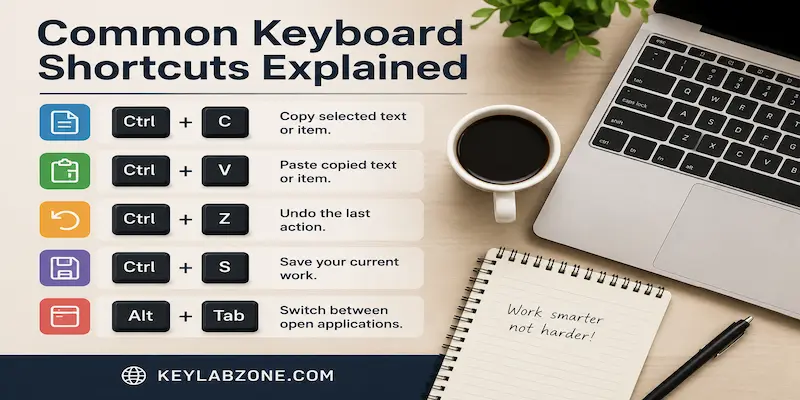
- Start with five shortcuts only. Pick the ones most relevant to your daily work Ctrl + C, Ctrl + V, Ctrl + Z, Ctrl + S, and Alt + Tab are a solid starting set.
- Force yourself to use the shortcut even when the mouse feels faster. The discomfort is temporary. After a week, the shortcut will feel natural.
- Use a shortcut reference card. Print the table from this article and keep it near your keyboard for the first few weeks.
- Practice during low-stakes tasks. When you are browsing or writing casually, that is a good time to experiment with shortcuts you have not used before.
- Customize shortcuts in your most-used apps. Many applications including VS Code, Photoshop, and Excel allow you to remap shortcuts to your preference.
Learning keyboard shortcuts is one of the easiest ways to improve computer efficiency. According to Microsoft Support, shortcut keys can help users complete common tasks more quickly and navigate applications with less reliance on a mouse. Developing a habit of using shortcuts consistently can lead to noticeable productivity gains over time.
Conclusion
Keyboard shortcuts are one of the simplest and most effective ways to improve your productivity on a computer. They do not require any new software or hardware just a little practice and patience
Start with the universal shortcuts covered in the first few sections of this guide. Once those feel automatic, move on to the browser shortcuts, then the text navigation ones. Within a few weeks, you will notice a genuine difference in how fast and smoothly you work.
The goal is not to memorize every shortcut on this page it is to build a habit of using shortcuts for your most common tasks. Over time, that habit compounds into thousands of hours saved across your career.
FAQs
Most shortcuts are standard across Windows PCs. However, Mac computers use the Command key instead of Ctrl for many shortcuts. Some applications also have their own unique shortcuts that override the defaults.
Universal shortcuts like Ctrl + C and Ctrl + S work in almost all applications. However, app-specific shortcuts (like those in Photoshop or Excel) only work within that program.
On laptops, the Fn key may need to be held down for function keys to work correctly. Also, some shortcuts are disabled in certain applications or may conflict with other software running in the background.
Yes. On Windows, you can assign shortcuts to application shortcuts via Properties > Shortcut key. On Mac, you can create custom shortcuts under System Preferences > Keyboard > Shortcuts. Many applications like VS Code, Auto Hotkey (Windows), and Karabiner-Elements (Mac) offer advanced shortcut customization.
For students, the most important shortcuts are Ctrl + C, Ctrl + V, Ctrl + Z, Ctrl + S, Ctrl + F, Ctrl + B, Ctrl + I, and Ctrl + P. These cover the majority of tasks involved in writing assignments, research, and document formatting.
Yes. Google Docs supports most standard shortcuts and also has its own shortcuts for features like adding comments (Ctrl + Alt + M), inserting links (Ctrl + K), and accessing the word count (Ctrl + Shift + C). You can view all Google Docs shortcuts by pressing Ctrl + / inside a document.



- Be Respectful
- Stay Relevant
- Stay Positive
- True Feedback
- Encourage Discussion
- Avoid Spamming
- No Fake News
- Don't Copy-Paste
- No Personal Attacks
- Be Respectful
- Stay Relevant
- Stay Positive
- True Feedback
- Encourage Discussion
- Avoid Spamming
- No Fake News
- Don't Copy-Paste
- No Personal Attacks
