How to Know If a Keyboard Switch Is Broken (7 Signs + Fix Guide)
Published: 16 Jun 2026
How to Know If Keyboard Switch Is Broken is something many keyboard users wonder when a key suddenly stops responding, starts double typing, or feels different from other keys. The problem is not always a damaged switch because it can also happen due to software issues, dust buildup, or connection problems.
Finding the actual cause helps you avoid unnecessary repairs or replacing your keyboard too early. In this guide, you will learn reliable ways to check a faulty keyboard switch, identify common warning signs, and understand the best solutions to fix the problem.
What Is a Keyboard Switch and Why Do They Fail?
A keyboard switch is the physical mechanism under each keycap. When you press a key, the switch completes an electrical circuit that sends a signal to your PC. On mechanical keyboards, each key has its own individual switch. On membrane keyboards, the switch is a rubber dome layer shared across the board.
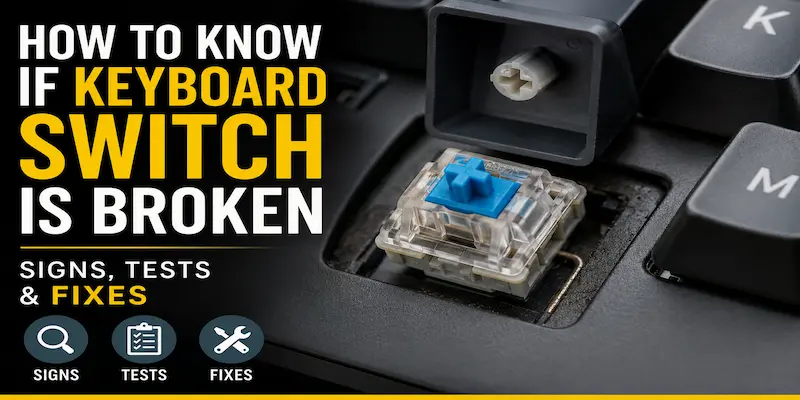
Switches fail for several reasons:
- Dust, debris, or liquid entering the housing
- Worn-out spring or contact leaf from heavy use
- Solder joint cracking on PCB-mounted switches
- Physical damage from impact or a dropped keyboard
- Factory defect (less common but possible)
7 Signs Your Keyboard Switch Is Broken
1. The Key Does Not Register at All
You press the key and nothing appears on screen. This is the most obvious symptom. Before assuming a broken switch, first test the key in a browser-based keyboard tester or use Windows’ on-screen keyboard to confirm the signal is not reaching the OS. If the tester shows no input for that key, the switch is the likely culprit.
2. The Key Registers Inconsistently (Chattering)
You press once but the key types the same character two or three times. This is called switch chattering and happens when the metal contacts inside the switch bounce on activation. It is a common failure mode in aging Cherry MX and Gateron switches. You can verify chattering using a keyboard tester that shows raw key events you will see rapid press/release cycles from a single press.
Pro Tip: Chattering is fixable in software temporarily using tools like Keyboard Chattering Fix (Windows), but the hardware failure will worsen over time.
3. The Key Requires Excessive Force to Activate
If a key now feels stiffer than your other keys and needs more pressure than usual, the spring or actuation mechanism inside the switch may be damaged or dirty. Compare the resistance to an adjacent working key if there is a clear difference, the switch internals are compromised.
4. The Key Activates Without Being Pressed (Ghost Pressing)
A key appearing to press itself is a sign of a short circuit inside the switch, often caused by liquid damage. Open a text editor and watch if the character appears on its own. If it does repeatedly, the switch contacts are stuck in a closed position.
5. The Key Feels Scratchy or Has No Tactile/Click Feedback
For tactile or clicky switches (like Cherry MX Brown or Blue), a sudden loss of the bump or click sensation means the stem or leaf spring mechanism is worn or broken. Linear switches that feel gritty may have debris inside or a cracked housing.
6. The Keycap Wobbles Excessively
Some wobble is normal, but if the keycap shakes far more than its neighbors, the switch stem may be cracked or the switch housing may be broken. Gently remove the keycap and inspect the stem visually.
7. Audible Change in Sound
Experienced keyboard users can often hear when a switch is damaged. A hollow, rattling, or mushy sound from a single key that used to sound consistent with the rest of the board is a reliable early indicator of switch failure.
Quick Symptom Reference Table
| Symptom | Most Likely Cause | Confidence Level |
| Key does not register | Dead switch contact or broken solder joint | High |
| Key types double characters | Switch chattering (contact bounce) | High |
| Key requires extra force | Damaged spring or debris inside housing | Medium |
| Key presses by itself | Short circuit / liquid damage | High |
| No tactile/click feel | Worn stem or leaf spring | Medium |
| Keycap wobbles badly | Cracked switch stem or housing | High |
| Hollow or rattling sound | Broken housing or loose stem | Medium |
How to Test a Keyboard Switch (Step-by-Step)
Method 1: Use a Browser-Based Keyboard Tester
The fastest first step. Go to keyboardtester.com or a similar tool and press every key. The tester highlights keys as they register. A key that stays dark despite being pressed is failing to send a signal this points to a switch or connection problem, not software.
Method 2: Use a Multimeter (For Mechanical Keyboards)
This is the definitive hardware test. You need a multimeter set to continuity mode (or resistance mode).
- Remove the keycap and, if possible, desolder the switch from the PCB
- Touch the two probes to the switch’s two pins
- Press the switch stem down manually
- A working switch will beep (continuity mode) or show near-zero resistance when pressed, and open circuit when released
- A broken switch will show no continuity when pressed, or constant continuity when released (shorted)
Note: This test works on all mechanical switches Cherry MX, Gateron, Kailah, Out Emu, and others. You do not need to desolder if your keyboard is hot-swappable.
Method 3: Swap the Switch (Hot-Swap Keyboards Only)
If your keyboard supports hot-swap (e.g., many Keychron, Glorious, or Akko boards), pull the suspected switch with a switch puller and replace it with a spare or a switch from a less-used key like Scroll Lock. If the problem moves to the new key’s location, the issue is on the PCB, not the switch. If the problem disappears, the original switch was the cause.
Method 4: Visual Inspection
Remove the keycap and shine a flashlight into the switch housing. Look for:
- Visible cracks in the switch housing
- Debris or liquid residue inside
- Bent or missing contact leaf
- Corrosion on the pins
Method 5: Cleaning Test (Rule Out Debris First)
Before declaring a switch broken, try cleaning it. For mechanical keyboards, use compressed air to blow out the switch. If the keyboard is not hot-swap, you can use a switch opener to disassemble and clean the internals with isopropyl alcohol (90% or higher). Dry completely before reassembling. Many intermittent failures are resolved by cleaning alone.
Is It Definitely Broken? Rule Out These Causes First
| Possible Cause | How to Rule It Out |
| Driver or software issue | Test in BIOS or on another computer |
| Dirt or debris | Clean with compressed air / IPA and retest |
| Loose USB connection | Try a different USB port or cable |
| Firmware bug | Update or reflash keyboard firmware |
| Wrong key mapping | Check keyboard layout settings in OS |
| Stuck keycap | Remove keycap and test the switch bare |
Broken Switch: Repair or Replace?
| Keyboard Type | Repair Option | Replace Option |
| Hot-swap mechanical | Clean or lube switch | Pull and swap in seconds easiest option |
| Soldered mechanical | Clean or lube if accessible | Desolder old switch, solder new one (requires skill) |
| Membrane keyboard | Not practical | Replace the keyboard membrane repair is not cost-effective |
| Laptop keyboard | Compressed air cleaning only | Replace the keycap or entire keyboard module |
For most users, a broken switch on a hot-swap board is a 2-minute fix. On soldered boards, if you are not comfortable with a soldering iron, take it to a repair shop or consider a keyboard upgrade.
Conclusion
Diagnosing a broken keyboard switch is straightforward when you follow a systematic approach: start with a keyboard tester, rule out software and cleaning issues, then test the switch physically with a multimeter or swap test. Most mechanical switch failures are fixable especially on hot-swap keyboards where replacing a switch takes under two minutes.
If you are shopping for a new keyboard, prioritizing hot-swap support is one of the best investments you can make for long-term repairability.
FAQs
Yes if your keyboard is hot-swappable. Simply pull the broken switch with a switch puller and insert a replacement. No soldering required. If it is a soldered board, you can sometimes clean and restore a switch without desoldering by carefully applying isopropyl alcohol and actuating the switch repeatedly to flush debris.
Most quality mechanical switches are rated for 50 to 100 million keystrokes. In practice, heavily used keys like Space, Enter, and A, S, D, W can fail earlier. Budget membrane keyboards typically last 5 to 10 million keystrokes total.
Chattering is a sign of switch wear or contamination, not always complete failure. You can use software workarounds temporarily. If the problem is in an otherwise expensive keyboard, cleaning or replacing just that one switch is more economical than replacing the whole board.
The swap test is the most reliable method. Move the switch to a different socket. If the problem follows the switch, it is the switch. If the problem stays at that PCB position with a new switch installed, the PCB trace or controller is faulty.
Sometimes. Immediately power off the keyboard, unplug it, and do not press any keys. Disassemble and clean all components with isopropyl alcohol. Allow to dry for at least 24 to 48 hours. Switches with liquid damage that caused a short may need replacement, but keys that simply stopped working due to mineral deposits can often be restored.
Usually not. Budget keyboards under $30 are often not hot-swappable, and the cost of replacement switches plus labor often exceeds the keyboard’s value. Consider upgrading to a hot-swap keyboard where individual switch replacement is easy and cost-effective long-term.




- Be Respectful
- Stay Relevant
- Stay Positive
- True Feedback
- Encourage Discussion
- Avoid Spamming
- No Fake News
- Don't Copy-Paste
- No Personal Attacks
- Be Respectful
- Stay Relevant
- Stay Positive
- True Feedback
- Encourage Discussion
- Avoid Spamming
- No Fake News
- Don't Copy-Paste
- No Personal Attacks
