How to Test Keyboard Without Opening Laptop (5 Easy Methods)
Published: 14 Jun 2026
A single unresponsive key can disrupt your entire workflow. But before you book a technician or start unscrewing your laptop, you can test keyboard without opening laptop using free online tools that take under five minutes.
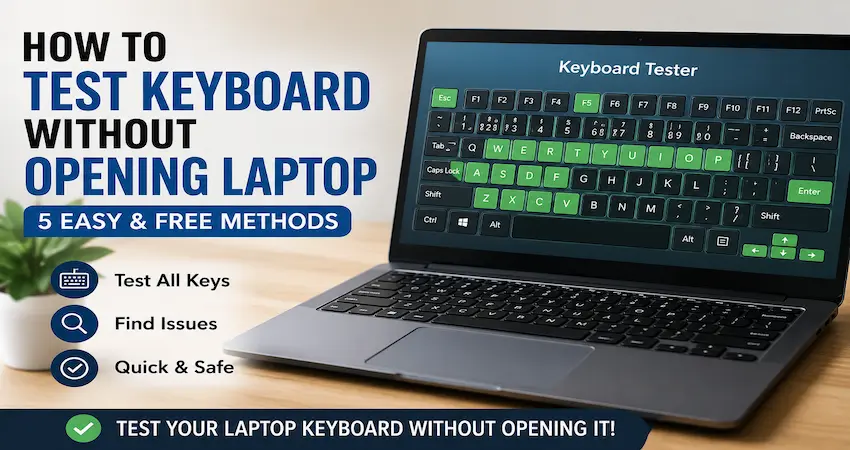
This guide covers 5 reliable methods to test your laptop keyboard without removing any parts, from quick browser-based testers to BIOS-level hardware diagnostics. Each method is explained step by step so you know exactly what the result means and what to do next.
When Should You Test Keyboard Without Opening Laptop
Run a keyboard test any time you notice one of these symptoms:
- One or more keys are not registering when pressed
- Keys are registering wrong characters (e.g., pressing ‘a’ types ‘1’)
- Multiple keys trigger when only one is pressed (ghosting)
- The keyboard stopped working after a Windows update
- Keys feel physically fine but produce no output
- You spilled liquid on the keyboard and want to assess damage
Each symptom points to a different root cause. The tests below help you isolate whether you are dealing with a hardware problem, a driver issue, or a configuration error saving you time and unnecessary repair costs.
5 Methods at a Glance
| Method | Tool / Platform | What It Tests | Difficulty |
| Online Keyboard Tester | Browser keylabzone.com | All key inputs | Very Easy |
| Windows On-Screen Keyboard | Windows Settings | OS-level key signals | Very Easy |
| BIOS / UEFI Test | Startup (F2 / Del / F10) | Raw hardware | Easy |
| Device Manager | Windows built-in | Driver & software | Easy |
| Third-Party Software | Pass Mark, Aqua Key Test | Advanced diagnostics | Easy |
Method 1: Online Keyboard Tester (Fastest No Download Required)
An online keyboard tester is the quickest diagnostic tool available. It runs entirely in your browser, detects every keypress in real time, and visually highlights which keys are working and which are not.
How It Works
When you press a key, your browser captures the keydown event and maps it to the corresponding key on a visual keyboard layout displayed on screen. Keys that register appear highlighted. Keys that produce no response stay dark.
Step-by-Step
- Open Google Chrome, Firefox, or Edge on your laptop
- Go to an online keyboard tester (keylabzone.com has a free one)
- Click anywhere on the page to ensure the browser is focused
- Press each key slowly one at a time
- Watch for the on-screen highlight to confirm registration
- Test all rows: number row, QWERTY row, modifier keys, function keys, and arrow keys
What the Results Tell You
- Key highlights normally: that key is working correctly
- Key does not highlight at all: hardware or driver failure proceed to BIOS test to confirm
- Wrong key highlights: keyboard layout mismatch in Windows settings
- Extra keys highlight when you press one: keyboard ghosting issue
Online testers work for all standard keys. Note that some Fn-layer shortcuts (e.g., Fn+F5 for brightness) are handled by firmware and may not register in a browser this is normal behavior, not a fault.
Method 2: Windows On-Screen Keyboard (No Internet Required)
Windows includes a built-in On-Screen Keyboard that reflects every physical keypress in real time. This method works offline and requires no third-party tools.
How to Open On-Screen Keyboard
There are three ways depending on your Windows version:
- Keyboard shortcut: Press Win + Ctrl + O
- Settings path: Settings > Accessibility > Keyboard > On-Screen Keyboard (toggle On)
- Search: Press Win, type ‘On-Screen Keyboard’, press Enter
How to Use It for Testing
- Open Notepad or any text field
- Open On-Screen Keyboard (keep both windows visible)
- Press each physical key on your laptop
- Watch the On-Screen Keyboard the corresponding key should briefly highlight
This method confirms whether Windows is receiving the input signal from each key. It is especially useful for identifying whether a problem is hardware-level (key never highlights) or configuration-level (key highlights but types wrong character).
Interpreting Results
- Key highlights on OSK: Windows is receiving the signal likely a display or app-level issue
- Key does not highlight on OSK but worked in online tester: Windows driver conflict
- Key highlights but types wrong character: Input language or keyboard layout issue
Method 3: BIOS / UEFI Test The Definitive Hardware Test
The BIOS test is the most reliable way to isolate keyboard hardware from software. BIOS runs before Windows loads, so it is completely independent of drivers, apps, or operating system settings. If a key works in BIOS, the hardware is intact.
How to Access BIOS
Restart your laptop and press the BIOS key during startup the exact key depends on your brand:
| Laptop Brand | BIOS Key | Notes |
| Dell | F2 | Press immediately when Dell logo appears |
| HP | F10 or Esc | Press Esc first, then select F10 from menu |
| Lenovo ThinkPad | F1 | Press and hold during startup |
| Lenovo IdeaPad | F2 | Press repeatedly before Windows loads |
| Asus | Del or F2 | Varies by model try both |
| Acer | F2 or Del | Press repeatedly at the Acer logo screen |
| MSI | Del | Press at the MSI splash screen |
| Samsung | F2 | Press just after power button |
Tip: Press the key repeatedly starting from the moment you press the power button. A single press may be missed if timed incorrectly.
What to Test Inside BIOS
- Navigate menus using arrow keys this confirms directional keys work
- Some BIOS versions include a Diagnostics tab with a dedicated keyboard test utility
- Type in any available text field (e.g., a filename field in BIOS settings)
- On Dell laptops: look for ‘Keyboard Test’ under the Diagnostics menu
- On HP laptops: press F2 at startup to enter HP Diagnostics and run a full keyboard test
What the Result Proves
- Key works in BIOS: hardware is fine the problem is in Windows (driver or software)
- Key fails in BIOS: confirmed hardware damage physical repair or replacement needed
This single test eliminates hours of software troubleshooting when the problem is actually physical, and equally saves you from an unnecessary hardware repair when the problem is just a driver.
Method 4: Device Manager Fix Driver and Software Issues
If your keyboard stopped working after a Windows update, or works intermittently, the problem is almost always driver-related. Device Manager gives you direct control over keyboard drivers without any third-party tools.
Steps to Check and Update the Driver
- Press Win + X and click Device Manager
- Expand the Keyboards section
- Look for a yellow warning icon (!) this confirms a driver problem
- Right-click the keyboard device and select Update Driver
- Choose Search automatically for updated drivers
- Restart your laptop after the update completes
If Update Does Not Fix It Reinstall the Driver
- In Device Manager, right-click the keyboard device
- Select Uninstall Device
- Confirm the uninstall (do not check ‘Delete driver software’ if prompted)
- Restart Windows will automatically reinstall the default keyboard driver
This process resolves the majority of post-update keyboard failures. It takes under 3 minutes and requires no downloads.
Check for Conflicting Software
Some keyboard customization apps (Razer Synapse, Logitech G Hub, Auto Hotkey) can interfere with built-in laptop keyboards. If you installed any such software recently, try disabling it temporarily and retest.
Method 5: Third-Party Keyboard Testing Software
For users who need detailed diagnostics beyond what browser-based tools offer such as N-key rollover testing, key timing analysis, or generating a test report dedicated software provides the most comprehensive results.
| Software | Platform | Price | Best For |
| Pass Mark Keyboard Test | Windows | Free trial | Full key mapping + rollover test |
| Aqua Key Test | Windows | Free | Simple, fast key-by-key check |
| KeyboardStateView (Nir Soft) | Windows | Free | Real-time key state monitor |
| Keyboard Viewer | macOS | Built-in | Mac keyboard testing |
| vex | Linux | Built-in | Terminal-based key event viewer |
When to Use Third-Party Software
- You need to verify N-key rollover (important for gaming or fast typing)
- You want to test key repeat rate and response time
- You need a printable or exportable test report for warranty claims
- The online tester results are inconclusive and you want a second confirmation
For most users, the online tester and BIOS test are sufficient. Third-party software adds value mainly for power users and those dealing with complex or intermittent issues.
Diagnosis Reference: What Your Test Results Mean
Use this table to interpret your results and decide on the correct fix:
| Test Result | What It Means | Fix |
| Works in BIOS, fails in Windows | Software / driver issue | Reinstall keyboard driver in Device Manager |
| Fails in BIOS | Hardware damage | Physical key replacement or service center |
| Works in online tester, types wrong chars | Wrong keyboard layout / language | Change input language in Windows Settings |
| Key works sometimes (intermittent) | Loose ribbon cable or debris | Clean under key, check connection |
| Entire keyboard unresponsive | Driver crash or hardware fault | Run BIOS test to isolate cause |
| Works after restart only | Stuck driver or software conflict | Check startup programs, update drivers |
The BIOS vs Windows distinction is the most important diagnostic split. It immediately tells you whether to focus on software fixes (driver reinstall, Windows repair) or physical repair (key mechanism, ribbon cable, full keyboard replacement).
What to Do After Diagnosing a Broken Key
If your tests confirm physical damage, here are your options ranked by cost and complexity:
Option 1: Clean Under the Key (Free)
Debris, dust, and crumbs under a key can prevent it from making contact. Use compressed air (available at any electronics shop) directed at a 45-degree angle under the affected key. Do not use water or spray directly downward. This fixes a surprising number of ‘dead key’ complaints.
Option 2: Replace the Individual Keycap or Scissor Mechanism
Laptop keycaps and scissor mechanisms are sold individually on Daraz, OLX, and AliExpress for most models. Search your exact laptop model + key name (e.g., ‘Dell Inspiron 15 Enter key’). Replacement takes 30 seconds and requires no tools.
Option 3: Use an External USB Keyboard
A USB keyboard bypasses the laptop keyboard entirely and lets you continue working without any repair. Budget USB keyboards in Pakistan start from PKR 500–800. This is the fastest solution if you need your laptop functional immediately.
Option 4: Service Center
For keyboards under warranty (Dell, HP, and Lenovo all have service centers in Lahore, Karachi, and Islamabad), a keyboard replacement is often covered. Out-of-warranty full keyboard replacements typically cost PKR 2,000–6,000 depending on the model.
If you want to test your keyboard right now before reading the conclusion, use the free Keyboard Tester on KeyLabZone it works directly in your browser, highlights every key press, and takes less than two minutes to test your entire keyboard.
Conclusion
Testing a laptop keyboard without opening it is not only possible it takes under five minutes with the right method. Start with an online tester for a quick overview. If any key fails, run the BIOS test to confirm whether the problem is hardware or software. For driver issues, Device Manager gives you a complete fix in under three minutes.
The BIOS test is the single most valuable step in this process. It draws a clear line between hardware failure and software failure and that distinction alone saves you from either an unnecessary repair bill or hours of driver troubleshooting.
FAQs
Yes completely. Online testers, Windows On-Screen Keyboard, and BIOS diagnostics all work without any disassembly.
If the key shows no response in both an online tester AND the BIOS test, the physical key mechanism or its contact is damaged.
Most sudden failures are driver-related (especially after Windows updates) or caused by debris under the key. Run a BIOS test first to confirm whether the issue is hardware or software.
Yes, Dell, HP, Lenovo, Asus, Acer, MSI, and MacBook (on Windows via Boot Camp). Any keyboard connected to a browser will work.
Do NOT power on immediately. Let it dry for 24–48 hours, then run an online tester. Keys still unresponsive after drying likely need physical replacement.
Yes, On Linux, use the xev command in terminal. On macOS, use the built-in Keyboard Viewer under System Settings > Keyboard.



- Be Respectful
- Stay Relevant
- Stay Positive
- True Feedback
- Encourage Discussion
- Avoid Spamming
- No Fake News
- Don't Copy-Paste
- No Personal Attacks
- Be Respectful
- Stay Relevant
- Stay Positive
- True Feedback
- Encourage Discussion
- Avoid Spamming
- No Fake News
- Don't Copy-Paste
- No Personal Attacks
