Basic Computer Shortcut Keys List (Complete Guide for Students & Beginners)
Published: 30 May 2026
If you want to work faster and smarter on a computer, then learning the basic computer shortcut keys list is one of the most valuable skills for students and beginners. These shortcut keys allow you to complete daily tasks quickly without relying on mouse clicks, making your work more efficient and professional.
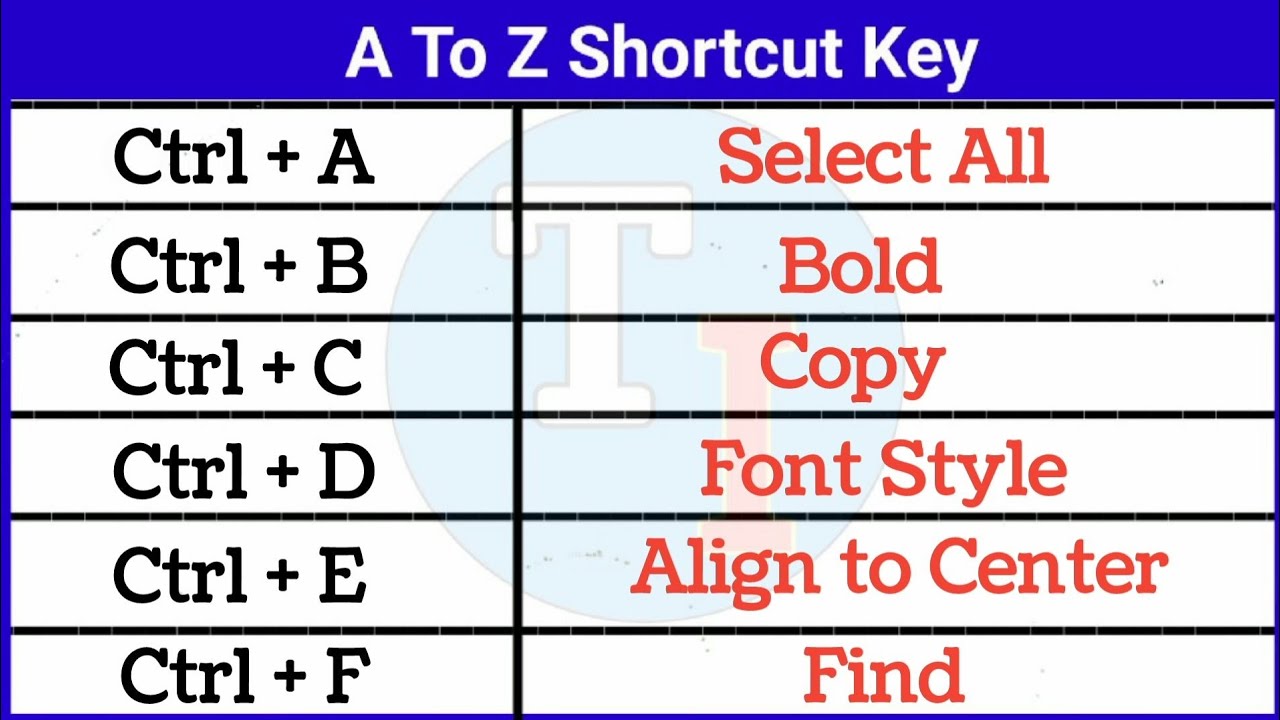
In today’s digital world, computers are used for studying, online classes, assignments, research, presentations, and communication. Whether you are a student or beginner, mastering keyboard shortcuts can save a significant amount of time and improve your overall productivity.
What Are Keyboard Shortcut Keys?
Keyboard shortcut keys are combinations of two or more keys pressed together to perform a specific action instantly. Instead of navigating through menus with a mouse, you can complete tasks in seconds using simple key combinations.
For example, copying text using Ctrl + C, pasting it with Ctrl + V, or undoing a mistake with Ctrl + Z are all basic shortcuts that make computing much faster and easier.
Learning the basic computer shortcut keys list helps students perform academic tasks more efficiently and reduces unnecessary effort during daily computer use.
Why Keyboard Shortcut Keys Are Important
Keyboard shortcut keys are important because they help users work in a smarter and faster way. Instead of spending time clicking multiple options, shortcuts allow instant execution of commands. This not only saves time but also improves focus and workflow efficiency.
For students, this is especially useful during assignments, online classes, and research work where speed and accuracy matter. Using shortcuts reduces dependency on the mouse, which helps in maintaining a smoother working experience. Over time, regular use of shortcut keys builds confidence and improves computer handling skills, which are essential in both education and professional life.
In simple words, keyboard shortcuts transform slow work into fast, efficient, and professional-level performance.
Basic Computer Shortcut Keys List
Below is a complete and practical basic computer shortcut keys list that every student and beginner should learn:
Editing Shortcuts
- Ctrl + C → Copy selected text or item
- Ctrl + V → Paste copied content
- Ctrl + X → Cut selected content
- Ctrl + Z → Undo last action
- Ctrl + Y → Redo action
- Ctrl + A → Select all content
- Ctrl + S → Save file
File and Document Shortcuts
- Ctrl + N → Open new document or window
- Ctrl + O → Open existing file
- Ctrl + P → Print document
- F2 → Rename file
- F5 → Refresh page or folder
Browser Shortcuts
- Ctrl + T → Open new tab
- Ctrl + W → Close current tab
- Ctrl + Shift + T → Reopen closed tab
- Ctrl + Tab → Switch between tabs
- Ctrl + L → Select address bar
- Ctrl + D → Bookmark page
- Ctrl + R → Refresh page
Text Formatting Shortcuts
- Ctrl + B → Bold text
- Ctrl + I → Italic text
- Ctrl + U → Underline text
- Ctrl + K → Insert hyperlink
- Ctrl + Shift + V → Paste without formatting
Windows System Shortcuts
- Windows + D → Show desktop
- Windows + E → Open File Explorer
- Windows + L → Lock computer
- Windows + R → Open Run dialog
- Windows + I → Open Settings
- Windows + Shift + S → Take screenshot
- Windows + Tab → Open Task View
Advanced Useful Shortcuts
- Alt + Tab → Switch between applications
- Alt + F4 → Close active window
- Ctrl + Shift + Esc → Open Task Manager
- Ctrl + Backspace → Delete entire word
- Ctrl + Arrow Keys → Move cursor word by word
How to Learn Shortcut Keys Effectively
Learning shortcut keys is not difficult, but it requires consistency and practice. The best way to learn is by starting small and gradually building your memory. Instead of trying to memorize everything at once, focus on a few commonly used shortcuts like copy, paste, undo, and save.
Once you become comfortable, start using them in your daily tasks such as writing assignments, browsing, or editing documents. Repetition is the key factor here—when you use shortcuts regularly, they become a natural habit and you no longer need to think about them.
Another effective method is to keep a small cheat sheet near your study area. This helps you quickly recall shortcuts whenever needed. With consistent practice, you will notice that your speed and confidence improve significantly.
Final Thoughts
The basic computer shortcut keys list is an essential skill for every student and beginner in today’s digital age. It helps you save time, improve productivity, and complete tasks more efficiently without relying heavily on the mouse.
Once you start practicing these shortcuts regularly, you will notice a big improvement in your workflow speed and overall computer skills. The key is consistency start small, practice daily, and gradually build your confidence. Mastering keyboard shortcuts is not just about speed; it is about working smarter and becoming more efficient in everything you do on a computer.
FAQs
Keyboard shortcut keys are combinations of two or more keys pressed together to perform a task quickly without using a mouse. They help users save time and work more efficiently on a computer.
Students should learn keyboard shortcut keys because they make studying, assignments, and research work faster. They improve productivity, reduce effort, and help students complete tasks in less time.
The most commonly used shortcut keys are Ctrl + C (Copy), Ctrl + V (Paste), and Ctrl + Z (Undo). These are used almost in every type of computer work.
Yes, shortcut keys significantly improve productivity because they reduce the need for mouse clicks. While they do not directly increase typing speed, they make overall computer work much faster and smoother.
Most basic shortcuts like copy, paste, and save are the same in many applications such as Windows, MS Word, and browsers. However, some advanced shortcuts may vary depending on the software.
It depends on practice. If you learn and use a few shortcuts daily, you can become comfortable within a few weeks. Regular use is the key to mastering them quickly.




- Be Respectful
- Stay Relevant
- Stay Positive
- True Feedback
- Encourage Discussion
- Avoid Spamming
- No Fake News
- Don't Copy-Paste
- No Personal Attacks
- Be Respectful
- Stay Relevant
- Stay Positive
- True Feedback
- Encourage Discussion
- Avoid Spamming
- No Fake News
- Don't Copy-Paste
- No Personal Attacks
