Most Useful Keyboard Shortcuts for Beginners
Published: 24 May 2026
Keyboard shortcuts are one of the easiest ways to improve your computer skills and work faster. Instead of using the mouse for every action, shortcut keys allow users to perform commands instantly using the keyboard. For beginners who are just starting to improve their computer skills, learning basic Most Useful Keyboard Shortcuts for Beginners can save a lot of time, increase productivity, and make daily computer tasks much easier.
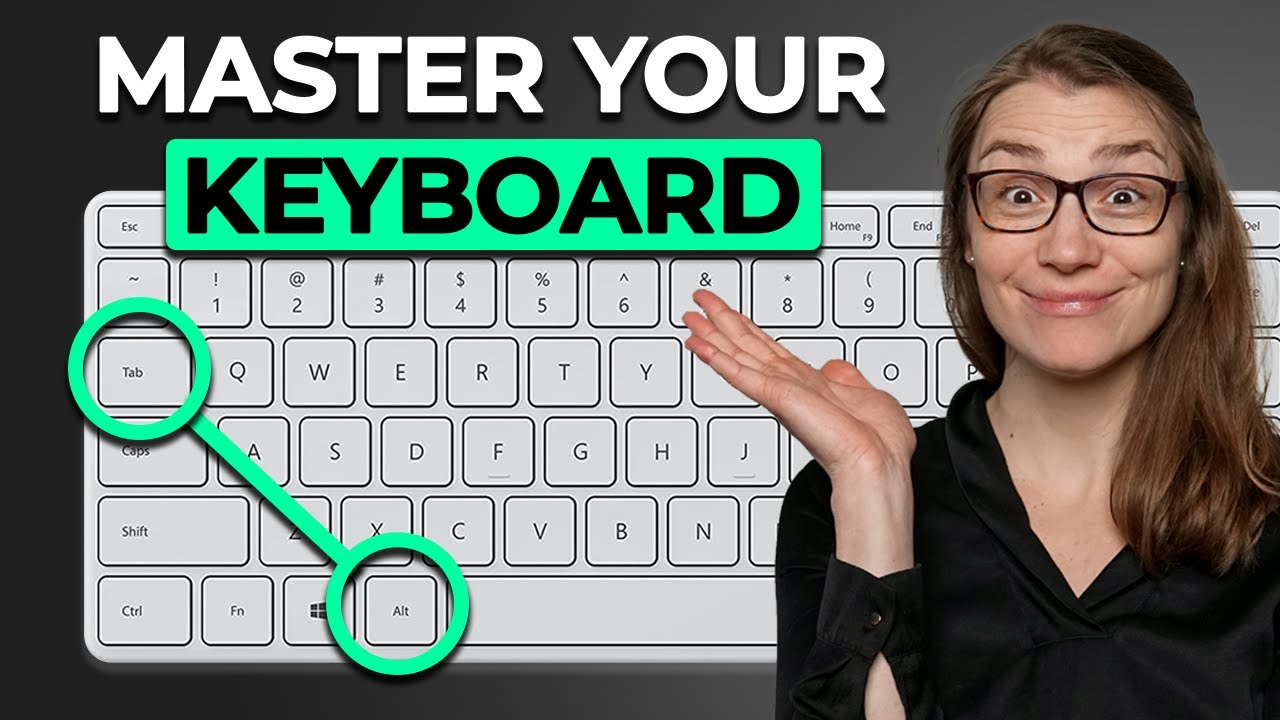
Instead of remembering random commands, focusing on the most useful keyboard shortcuts for beginners helps users build a strong foundation and improve their workflow step by step.
What Are Keyboard Shortcuts?
Keyboard shortcuts are combinations of keys that perform specific actions on a computer. Instead of navigating through menus or clicking multiple buttons with a mouse, users can press certain keys together to complete tasks instantly.
For example:
- Ctrl + C → Copy
- Ctrl + V → Paste
- Ctrl + Z → Undo
These shortcuts are designed to make computer usage faster, smoother, and more convenient.
Why Keyboard Shortcuts Are Important for Beginners
Learning shortcut keys may seem difficult at first, but they become very natural with regular practice. Beginners can benefit greatly because shortcuts improve both speed and efficiency.
Faster Workflow
Keyboard shortcuts reduce the time needed to perform repetitive tasks. Actions like saving files, opening tabs, and switching windows become much quicker.
Increased Productivity
People who use shortcut keys often complete tasks faster than those who rely only on the mouse. This is especially helpful for students, office workers, and content creators.
Better Computer Skills
Knowing useful shortcuts gives beginners more confidence while using computers and improves overall digital skills.
Less Dependence on the Mouse
Using the keyboard more frequently reduces unnecessary mouse movement, making work smoother and more comfortable.
Most Useful Keyboard Shortcuts for Beginners
Below are some of the most important and beginner-friendly keyboard shortcuts everyone should know.
| Shortcut Key | Function | Practical Use |
| Ctrl + C | Copy | Copy selected text or files |
| Ctrl + V | Paste | Paste copied content |
| Ctrl + X | Cut | Move text or files |
| Ctrl + Z | Undo | Reverse the last action |
| Ctrl + Y | Redo | Restore undone action |
| Ctrl + A | Select All | Select everything on the page |
| Ctrl + S | Save | Save documents or files |
| Ctrl + P | Print current document | |
| Ctrl + F | Find | Search words on a page |
| Ctrl + N | New Window | Open a new window |
| Alt + Tab | Switch Apps | Change between open programs |
| Windows + D | Show Desktop | Minimize all windows |
| Windows + L | Lock Computer | Secure the PC instantly |
| Ctrl + Shift + T | Reopen Closed Tab | Restore accidentally closed tabs |
| Ctrl + T | New Tab | Open a new browser tab |
| Ctrl + W | Close Tab | Close current browser tab |
These shortcuts are widely used in Windows computers, browsers, and many software applications.
Essential Browser Shortcuts
Internet browsing becomes much easier when using keyboard shortcuts. These commands help users navigate quickly between tabs and web pages.
| Shortcut | Function |
| Ctrl + T | Open a new tab |
| Ctrl + W | Close current tab |
| Ctrl + Shift + T | Reopen closed tab |
| Ctrl + Tab | Move to next tab |
| Ctrl + L | Highlight address bar |
| Ctrl + R | Refresh webpage |
| Ctrl + D | Bookmark current page |
| Ctrl + Plus (+) | Zoom in |
| Ctrl + Minus (-) | Zoom out |
These browser shortcuts work in popular browsers like Google Chrome, Microsoft Edge, and Mozilla Firefox.
Windows Keyboard Shortcuts for Daily Use
Windows users can perform many important tasks instantly using shortcut keys.
| Shortcut | Function |
| Windows + E | Open File Explorer |
| Windows + I | Open Settings |
| Windows + R | Open Run dialog |
| Windows + Tab | Open Task View |
| Windows + Arrow Keys | Snap windows |
| Windows + Shift + S | Take screenshot |
| Windows + M | Minimize all windows |
| Windows + Esc | Open Start menu |
These shortcuts are especially useful for multitasking and improving daily workflow.
Keyboard Shortcuts for Text Editing
Text editing shortcuts are extremely useful for students, bloggers, writers, and office users.
Copy, Paste, and Cut
The most commonly used editing shortcuts include:
- Ctrl + C → Copy
- Ctrl + V → Paste
- Ctrl + X → Cut
These commands make document editing much faster.
Undo and Redo
Mistakes happen frequently while typing or editing. Fortunately, these shortcuts help users fix them instantly.
- Ctrl + Z → Undo
- Ctrl + Y → Redo
Find Specific Words
When working with long documents, searching manually takes time.
- Ctrl + F allows users to quickly find words, phrases, or sentences.
Tips for Learning Keyboard Shortcuts Faster
Beginners can learn shortcut keys more easily by following simple practice methods.
Start With Basic Shortcuts
Focus first on common shortcuts like copy, paste, save, and undo before learning advanced commands.
Practice Daily
Using shortcuts regularly helps build muscle memory. Even a few minutes of daily practice can improve speed quickly.
Create a Shortcut Cheat Sheet
Writing important shortcuts on paper or saving them as notes can help beginners remember them.
Replace Mouse Usage Slowly
Try performing small tasks with shortcuts instead of using the mouse. Over time, this becomes natural.
Common Mistakes Beginners Make
Many beginners avoid shortcut keys because they believe they are difficult to remember. However, most shortcuts become easy after regular use.
Some common mistakes include:
- Trying to learn too many shortcuts at once
- Not practicing consistently
- Depending entirely on the mouse
- Forgetting commonly used commands
The best approach is to learn a few shortcuts weekly and use them regularly.
Final Thoughts
Keyboard shortcuts are powerful tools that help beginners use computers more efficiently. Simple commands like copy, paste, save, undo, and tab switching can significantly improve daily productivity.
By practicing regularly and learning a few shortcuts at a time, beginners can develop faster workflows and stronger computer skills. Whether you use a computer for study, office work, blogging, or personal tasks, keyboard shortcuts make everyday activities easier and more professional.
FAQs
The easiest keyboard shortcuts for beginners are Ctrl + C (Copy), Ctrl + V (Paste), Ctrl + Z (Undo), Ctrl + S (Save), and Ctrl + A (Select All). These shortcuts are commonly used in daily computer tasks and are simple to remember.
Keyboard shortcuts may stop working because of outdated keyboard drivers, disabled shortcut settings, software conflicts, or a damaged keyboard. Restarting the computer and updating drivers often fixes the problem.
Keyboard shortcuts reduce the time spent navigating menus and clicking with a mouse. They help users complete tasks faster, switch between apps quickly, and work more efficiently during study or office work.
Most basic shortcuts like copy, paste, save, and undo work in almost all applications. However, some advanced shortcuts may differ depending on the software or operating system.
The best way to remember keyboard shortcuts is through daily practice. Start with a few commonly used shortcuts, use them regularly, and gradually learn new ones over time.




- Be Respectful
- Stay Relevant
- Stay Positive
- True Feedback
- Encourage Discussion
- Avoid Spamming
- No Fake News
- Don't Copy-Paste
- No Personal Attacks
- Be Respectful
- Stay Relevant
- Stay Positive
- True Feedback
- Encourage Discussion
- Avoid Spamming
- No Fake News
- Don't Copy-Paste
- No Personal Attacks
